Completely Private
Your music never leaves your network. SOLONAS streams directly from your NAS to your device - no third-party servers ever touch your files.
SOLONAS is a private NAS music player for iPhone and Apple Watch. Connect to your Synology, QNAP, or any WebDAV server and stream your MP3 collection directly - no cloud, no subscription, no Apple Music required.
 iPhone app
Also available for Apple Watch ↓
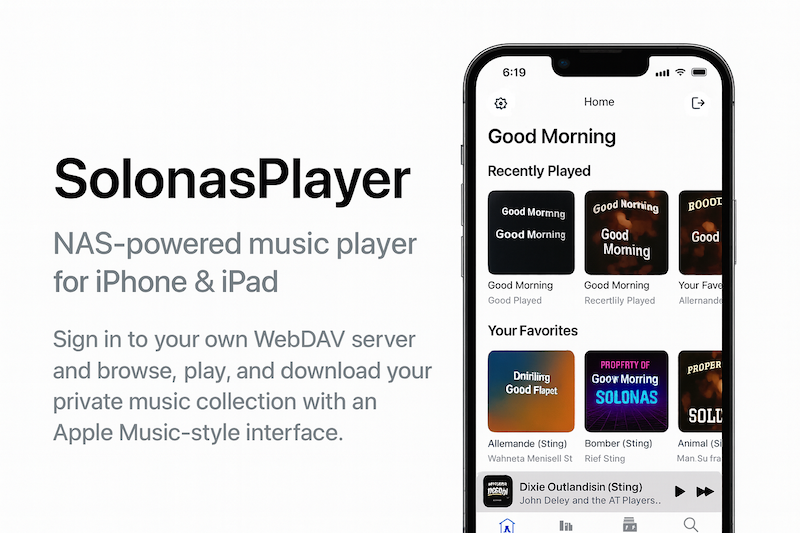
A NAS player is software that connects to a Network Attached Storage (NAS) device - like a Synology or QNAP box on your home network - and streams the audio files stored on it directly to your phone or smartwatch. Instead of uploading your music to Spotify, Apple Music, or any third-party cloud, you keep your files on your own hardware and stream from there.
Your library stays private. There is no monthly fee. You keep complete control of your data.
SOLONAS is a NAS audio player built specifically for Apple devices. It uses the WebDAV protocol - natively supported by almost every NAS on the market - to browse your folders and stream your MP3s in real time, whether you are at home on Wi-Fi or away over HTTPS.
SOLONAS works as a NAS music player for any server that supports WebDAV over HTTPS. That covers the most popular NAS brands and self-hosted platforms:
Running Synology? See our dedicated Synology WebDAV setup guide for step-by-step instructions with screenshots.
Other NAS music players ask you to install a transcoding server - Plex, Jellyfin, Subsonic - on top of your NAS. SOLONAS skips all that. WebDAV is already on your NAS. Just enable it and play.
Your music never leaves your network. SOLONAS streams directly from your NAS to your device - no third-party servers ever touch your files.
The only dedicated NAS music player for watchOS. Stream MP3s from your NAS directly to your wrist - no iPhone required during playback.
Buy once on the App Store. No Plex Pass, no subscription, no recurring fees. Your files, your player, forever.
WebDAV is already built into your NAS. SOLONAS connects directly - no Plex Media Server, no Jellyfin, no Docker container to configure.
Streams on your home network without port forwarding, or remotely over HTTPS when you are away from home.
Browse your library exactly how it lives on your NAS - by folder, artist, album. No import process, no database to rebuild.
Setup takes about five minutes. No server software to install on your NAS.
On Synology: open Package Center → install WebDAV Server → enable HTTPS (default port 5006).
On QNAP: App Center → install WebDAV Server → enable HTTPS.
On Nextcloud / ownCloud: WebDAV is already active - no extra step needed.
In your NAS admin panel, create a dedicated account with read-only access to your music share. This isolates SOLONAS from the rest of your NAS.
Get SOLONAS for iPhone, SOLONAS for Apple Watch, or both. The Watch app works fully standalone - it does not need the iPhone app running.
Host: your NAS hostname or local IP (e.g. 192.168.1.10 or mynas.local)
Port: your WebDAV HTTPS port (e.g. 5006 for Synology)
Path: your music folder path (e.g. /music)
Username / Password: your read-only NAS account
SOLONAS connects instantly and shows your folder tree. Tap any MP3 to start streaming. Use the Now Playing controls on your iPhone lock screen or Apple Watch face.
Need more detail? Read the full installation guide or the Synology-specific setup guide.
Most NAS audio players require running a full media server - Plex, Jellyfin, or Subsonic - on your NAS. That means extra software, extra configuration, and often a subscription for full features. SOLONAS uses WebDAV, which your NAS already has.
| Feature | SOLONAS | Plex / Jellyfin | Subsonic / Navidrome |
|---|---|---|---|
| Extra server software on NAS | None - uses built-in WebDAV | Yes - full media server | Yes - music server app |
| Apple Watch native app | Yes - watchOS NAS player | No Watch app | No Watch app |
| Works without cloud relay | Yes - fully local or HTTPS | Plex uses a cloud relay by default | Yes - self-hosted only |
| Subscription or paid tier | One-time purchase | Plex Pass for full features | Free (self-hosted) |
| Setup time | ~5 minutes - WebDAV only | 30+ min - server install + scan | 20+ min - Docker / server config |
| iPhone app | Yes | Yes | Yes (via third-party clients) |
A NAS music player is an app that connects to your Network Attached Storage (NAS) and streams the audio files stored on it directly to your phone or smartwatch. Unlike cloud music services, a NAS player uses your own hardware - no subscription, no upload, and no third-party servers.
Yes. SOLONAS is a dedicated NAS music player for iPhone. It connects to any NAS or WebDAV server - including Synology and QNAP - and streams your MP3 library directly to your device. No cloud, no subscription, no Apple Music required.
Yes. SOLONAS for Apple Watch is the only dedicated NAS player for watchOS. It streams MP3s directly from your NAS or WebDAV server to your wrist - no iPhone required for playback, no cloud involved. The Watch app is fully standalone.
SOLONAS works with any NAS that supports WebDAV over HTTPS - including Synology DiskStation, QNAP NAS, TrueNAS, Nextcloud, ownCloud, and any WebDAV-compatible host. Enable WebDAV in your NAS admin panel, point SOLONAS at your music folder, and you are ready to stream.
Yes. SOLONAS connects via the WebDAV protocol, which is supported by almost every NAS device and self-hosted server. If your server can serve files over WebDAV and HTTPS, SOLONAS can stream from it.
Enable WebDAV on your NAS (see our Synology setup guide), then open SOLONAS for iPhone, enter your server host, port, and music folder path, and log in with your NAS credentials. SOLONAS connects and lets you browse and stream your MP3 library instantly.
No. SOLONAS uses WebDAV, which is already built into Synology, QNAP, TrueNAS, and most other NAS devices. You do not need Plex, Jellyfin, Subsonic, or any other media server app - just enable WebDAV in your NAS admin panel.
Yes. Enter your NAS local IP or hostname as the Host and SOLONAS works perfectly on your home LAN. For remote access away from home, enable HTTPS and optionally set up port forwarding or Synology QuickConnect.
SOLONAS for iPhone is free to download with a 7-day trial, then a one-time unlock. SOLONAS for Apple Watch is a paid download. Both are one-time purchases, with no subscription and no recurring fee.
More questions? See the full FAQ page or contact support.
On the App Store. No subscription. Your music, your hardware, your way.
iPhone app
Apple Watch app