Apple Watch User Guide
Watch Manual
Everything you need to know about using SOLONAS on your Apple Watch - from your first login to advanced playback features.
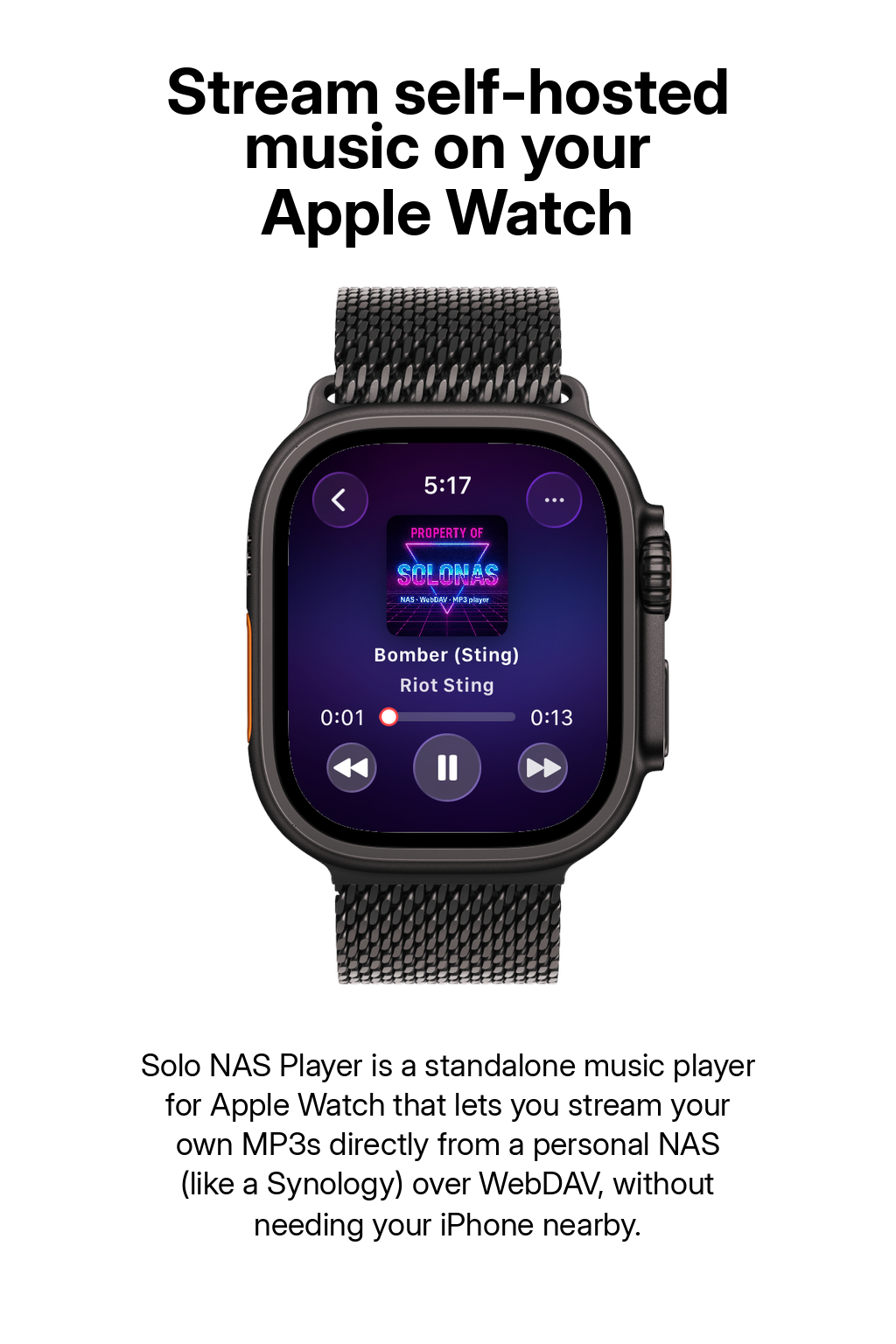
Getting Started
Before you begin, make sure you have:
- An Apple Watch running watchOS 26 or later
- A NAS or WebDAV server with your music files on it
- A Wi-Fi or cellular connection
Download the app
- Open the App Store on your Apple Watch Press the Digital Crown, find the App Store icon, and tap it.
- Search for “SOLONAS” Use Scribble, dictation, or the keyboard to type the name.
- Tap Get The app will install on your Watch. Once it’s done, you’ll see the SOLONAS icon on your home screen.
Sign In to Your Server
When you open SOLONAS for the first time, you’ll see the login screen. Enter your server details:
your-nas.example.com - your server’s address5006 - usually 5006 for HTTPS on Synology/music - the folder where your music livesYou can type using the Watch keyboard, Scribble, or dictation.
Subfolder login
If your music is inside a subfolder like /music/Playlists or /Audio,
you can enter that full path in the Path field. SOLONAS will open directly into that folder.
LAN or remote?
At home: Use your local IP (e.g. 192.168.1.50) for the fastest connection.
Away from home: Use your public address or domain with HTTPS for secure remote access.
Browse Your Music
After signing in, you’ll see your folders listed alphabetically.
- Folders have colored icons so you can tell them apart from files at a glance
- Audio files show their own icon, making it easy to spot playable tracks
- Playlists have a distinct badge so you know exactly what they are
- Tap a folder to open it. Tap the back button to go up one level.
Folders are sorted A–Z automatically, so your library stays tidy no matter how many folders you have.
Play a Song
Tap any audio file to start playing it. The player screen appears with these controls:
- Play / Pause - tap the center button
- Next / Previous - tap the forward or back buttons
- Scrub - use the Digital Crown to jump forward or backward in the track
While a song is loading, a spinner appears over the album artwork so the controls stay in place and you can keep tapping.
Supported formats
SOLONAS for Apple Watch can play all of these formats directly from your NAS:
Shuffle, Repeat & Autoplay
Control how your music plays back using these three modes:
Shuffle
Randomizes the play order of tracks in your current folder. Turn it on from the Now Playing Options menu (tap ⋯ in the player).
Repeat
Repeat a single track on loop, or repeat the entire folder when it reaches the end. Toggle through the options in Now Playing Options.
Autoplay
When autoplay is on, SOLONAS keeps playing through your folder and wraps back to the first track when it reaches the end - so the music never stops. Turn it on from Now Playing Options.
All three settings persist across app launches, so you only need to set them once.
Now Playing & Queue
While a track is playing, tap the ⋯ button in the player to open Now Playing Options. From here you can:
- Turn Shuffle, Repeat, and Autoplay on or off
- See the current track title and details
- Preview what’s playing next - including the next track’s artwork and title
The Queue Preview appears automatically so you always know what’s coming up.
Playlists
You can play playlists on your Apple Watch that were shared from the SOLONAS iPhone app.
- Create a playlist on iPhone Open SOLONAS on your iPhone and build a playlist from your library.
- Share it to your Watch Use the share option in the iPhone app to send the playlist to your Apple Watch.
- Play it on your Watch Open SOLONAS on your Watch. Shared playlists appear in your folder browser with a distinct playlist icon. Tap one to start playing.
Need Help?
- Can’t connect? Double-check your Server, Port, Path, Username, and Password. Try opening the URL in a browser first to make sure it works.
- No music showing? Make sure your NAS/WebDAV folder contains audio files and that your user has permission to access them.
- Playback stops or skips? Check your Wi-Fi signal strength. If you’re on cellular, make sure you have a stable connection.
- Music doesn’t resume after a call? Update to the latest version - v8.0 fixes interruption recovery after phone calls and Siri.
- Still stuck? Visit the FAQ, the Synology Setup Guide, or contact support.
More Resources
 Apple Watch app
Requires watchOS 26 or later.